How Big Can You Print an iPhone Photo? (Size Chart by Megapixels)
The largest sharp print size for 12MP, 24MP and 48MP iPhone photos at 300 and 150 DPI, the viewing-distance rule, and why cropped, zoomed, screenshot and messaging-app photos print much smaller.
Quick answer: A standard photo from an iPhone 15 or later (24MP) prints sharp up to about 19×14 inches at 300 DPI, so a 16×20 is comfortable, and up to about 38×28 inches as wall art. A 12MP photo from an older iPhone prints sharp to about 13×10 inches (11×14 is fine) and around 27×20 inches as wall art. A 48MP photo goes roughly twice as far. Cropped, zoomed, screenshot and messaging-app photos print much smaller. In the LifeCache Print Shop you don’t have to work this out: the app only offers sizes your photo can print well.
Print size comes down to one number: how many pixels end up in each inch of paper, or DPI. At 300 DPI, a print looks sharp even with your nose against it. That is the standard for 4×6s, photo books and framed photos on a desk. At 150 DPI, a print looks sharp from a few feet away, which is how you look at wall art.
The size chart
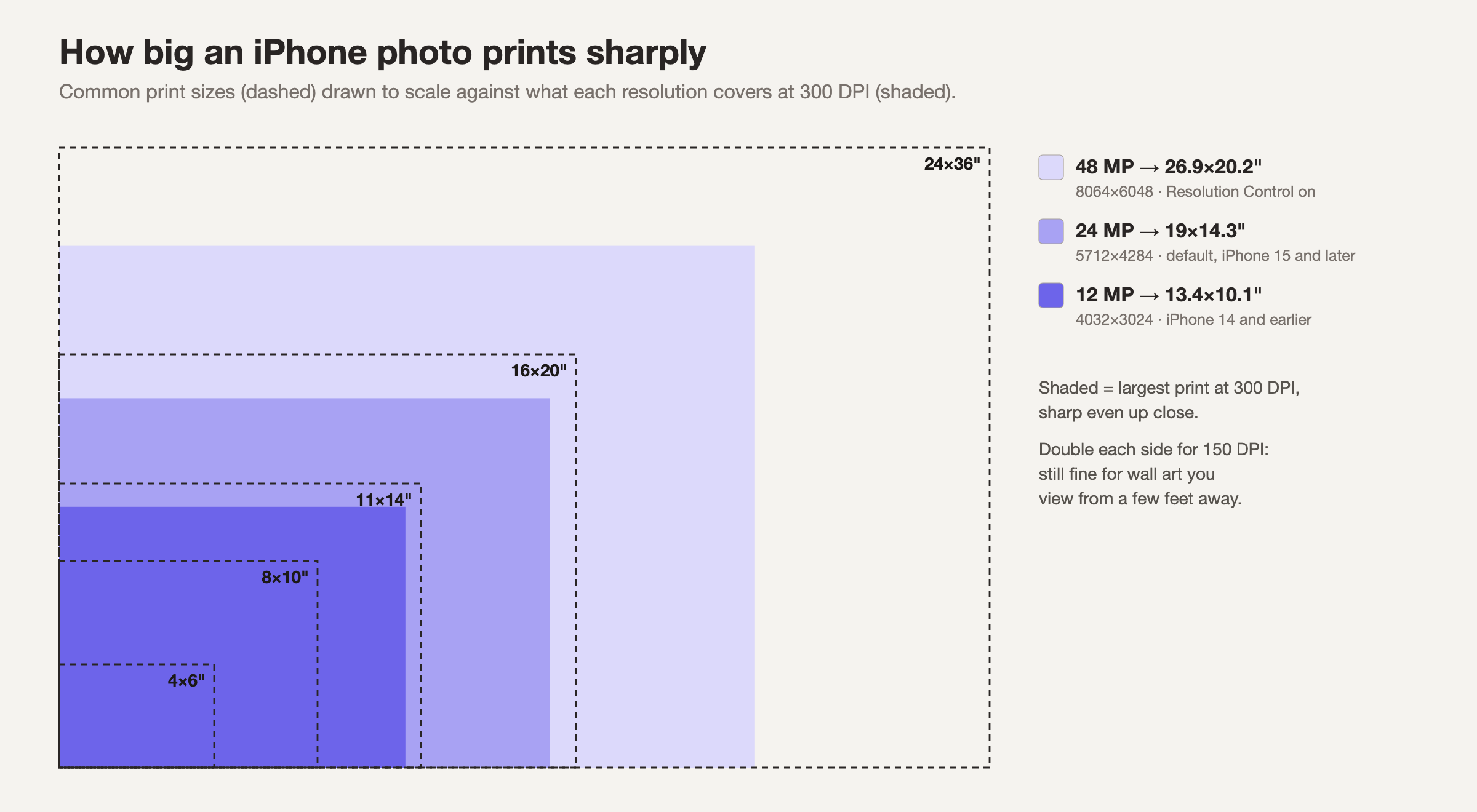
Maximum print size = pixels ÷ DPI. For the photo sizes iPhones actually produce:
| Photo | Pixels | Sharp up close (300 DPI) | Wall art (150 DPI) | Comfortable sizes |
|---|---|---|---|---|
| 48MP (Resolution Control on) | 8064 × 6048 | 26.9 × 20.2” | 53.8 × 40.3” | Up to 20×30 close up; 30×40 on a wall |
| 24MP (default, iPhone 15 and later) | 5712 × 4284 | 19.0 × 14.3” | 38.1 × 28.6” | Up to 16×20 close up; 24×36 on a wall |
| 12MP (iPhone 14 and earlier; Ultra Wide, Telephoto, Night mode) | 4032 × 3024 | 13.4 × 10.1” | 26.9 × 20.2” | Up to 11×14 close up; 16×20 on a wall |
| 12MP cropped to half width | 2016 × 1512 | 6.7 × 5.0” | 13.4 × 10.1” | 5×7 close up; 8×10 on a wall |
| Messaging-app or social copy (often ~1600 px) | ~1600 × 1200 | 5.3 × 4.0” | 10.7 × 8.0” | 4×6; small frames only |
| Screenshot (e.g. 1179 × 2556) | 1179 × 2556 | 3.9 × 8.5” | 7.9 × 17.0” | Small prints only |
What resolution is your iPhone shooting?
According to Apple, on supported models the main (Fusion) camera saves 24MP photos by default, and you can switch the default to 12MP under Settings > Camera > Formats > Photo Mode. To capture 48MP, turn on Resolution Control (or ProRAW & Resolution Control) in the same menu. In practice:
- iPhone 15 and later: 24MP by default from the main camera; 48MP if you turn it on.
- iPhone 14 and earlier: generally 12MP (the iPhone 14 Pro’s 48MP sensor saves 12MP unless you shoot 48MP ProRAW).
- All models: the Ultra Wide, Telephoto, Night mode, flash and macro shots are saved at 12MP. Apple notes that only main-camera photos at 1× can be saved at 48MP.
To check a specific photo, open it in Photos and swipe up. The info panel shows its megapixels and pixel dimensions.
The viewing-distance rule
People view a print from roughly one and a half to two times its diagonal. A 4×6 gets held in your hand. A 24×36 gets seen from across a room. That is why wall art can drop to around 150 DPI without anyone noticing, while a 4×6 in a book needs the full 300.
A good rule: use 300 DPI for anything held or framed on a desk, and accept 150 to 200 DPI for anything hung on a wall. Below about 150 DPI, softness starts to show even from a distance.
What shrinks your print size
The camera is rarely the problem. These are:
- Cropping. Cropping a photo to half its width leaves a quarter of the pixels. A 12MP photo cropped hard becomes a 3MP photo, good for a 5×7, not a canvas.
- Digital zoom. Zooming past the lens you are using (for example pinching in at 1× instead of switching to the telephoto) is a crop taken at capture.
- Messaging apps and social media. Photos sent through many messaging apps, or downloaded from social media, are commonly compressed to around 1,000 to 2,000 pixels on the long side. The copy someone sent you is not the original. Ask for the original, or print from the phone that took it.
- Screenshots. A screenshot is only screen resolution, around 1179×2556 on a recent iPhone. Fine for a 4×6, never for wall art.
- iCloud “Optimize iPhone Storage.” Your phone may hold a smaller version of older photos, but the full original is downloaded when you print or export, so this one does not cost you resolution.
Aspect ratio: why some sizes crop your photo
iPhone photos are 4:3. Many print sizes are not: a 4×6 is 3:2, an 8×10 is 5:4, and a square is 1:1. A 4:3 photo printed at 4×6 loses a sliver from the long edges, and a square loses more. Keep the important part of the photo away from the edges, or choose a size closer to 4:3, like 6×8, 12×16 or 18×24. The LifeCache app shows the crop on a live preview before you order.
How LifeCache handles this for you
When you pick a photo in the LifeCache Print Shop, the app:
- Uses the full-size original from your phone when that phone took the photo, so large prints get every pixel.
- Only offers sizes your photo can print well, with a floor of about 150 DPI. If a photo is too small for a 24×36 canvas, that size isn’t offered. Print files are prepared at around 300 DPI.
- Shows a live preview of your photo on the product, at the real shape, so you can see any crop.
So you can choose by what looks good, not by math. For choosing the material, see canvas vs metal vs framed vs wood, and for the surface, gloss vs lustre vs matte. For every way to print from a phone, see how to print photos from your iPhone.
Get LifeCache on the App Store →
Frequently Asked Questions
How big can I print a photo from my iPhone?
A standard 24MP photo from an iPhone 15 or later (5712×4284 pixels) prints sharp up to about 19×14 inches at 300 DPI, so 16×20 is comfortable, and up to about 38×28 inches at 150 DPI for wall art viewed from a few feet away. A 12MP photo from an older iPhone prints sharp to about 13×10 inches (11×14 is fine) and up to about 27×20 inches for wall art. A 48MP photo goes roughly twice as far.
What resolution does my iPhone take photos in?
On iPhone 15 and later, the main camera saves 24MP photos by default, and you can switch to 48MP by turning on Resolution Control (or ProRAW & Resolution Control) in Settings > Camera > Formats. iPhone 14 and earlier generally save 12MP. Ultra Wide, Telephoto, Night mode, flash and macro shots are saved at 12MP even on newer models.
What DPI do I need for a photo print?
300 DPI is the standard for prints you view up close, like 4×6s, books and framed photos on a desk. Around 150 DPI is the practical minimum for wall art viewed from a few feet away. The LifeCache Print Shop does not offer sizes below about 150 DPI for a given photo.
Can I print a 16×20 from an iPhone photo?
Yes. A 24MP or 48MP photo prints a sharp 16×20 at close to 300 DPI, and a 12MP photo prints a good 16×20 at about 200 DPI, which looks sharp on a wall. The exception is a heavily cropped or zoomed photo, which has far fewer pixels.
Why does my photo look blurry when printed large?
Usually because it has fewer pixels than you think. Digital zoom and cropping throw pixels away, screenshots are only screen resolution, and photos sent through messaging apps or downloaded from social media are often compressed to around 1,000 to 2,000 pixels on the long side. Print the original from your camera roll, not a copy someone sent you.
Should I shoot in 48MP to print bigger?
Only for photos you know you will print very large, like a landscape for a 24×36 canvas. 48MP files are much bigger and are saved only from the main camera at 1×. For everyday photos, the 24MP default already prints sharp past 16×20.